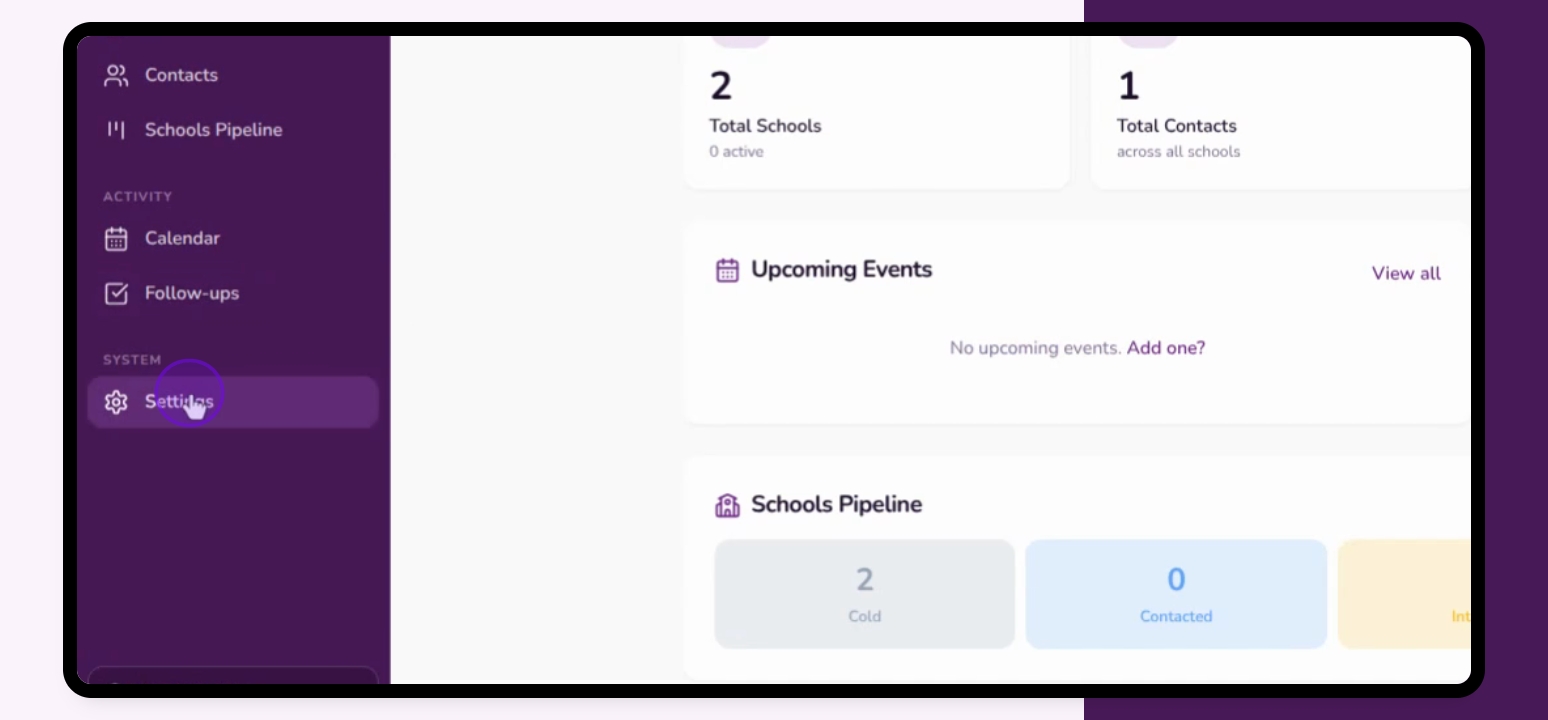

Once logged into your Inkwell CRM dashboard, you can change from Light to Dark mode very simply from the Dashboard itself and from any other page. Navigate to the top right-hand corner and click the Moon icon.
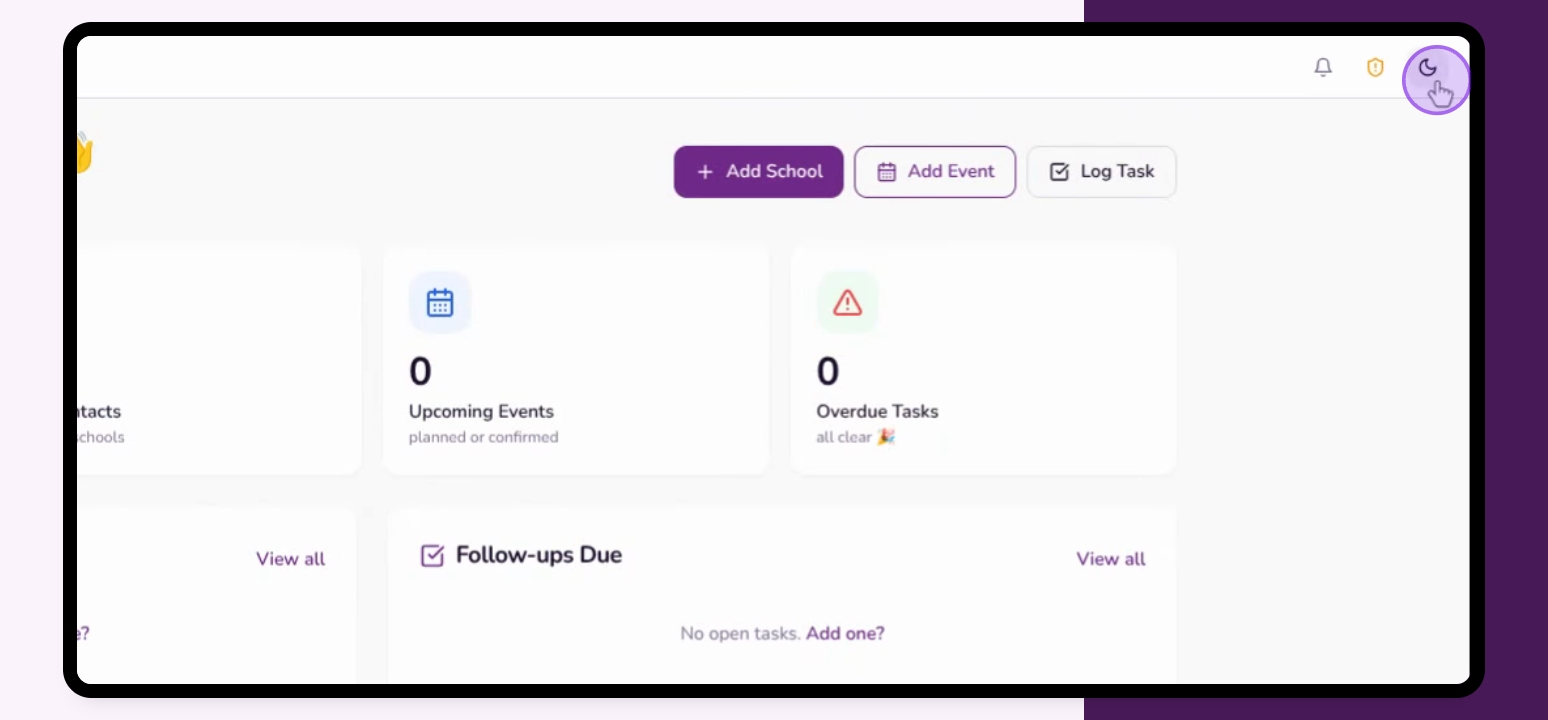
Step 1: Switch to Light Mode
If you wish it to be Light mode again, click the Sun icon.
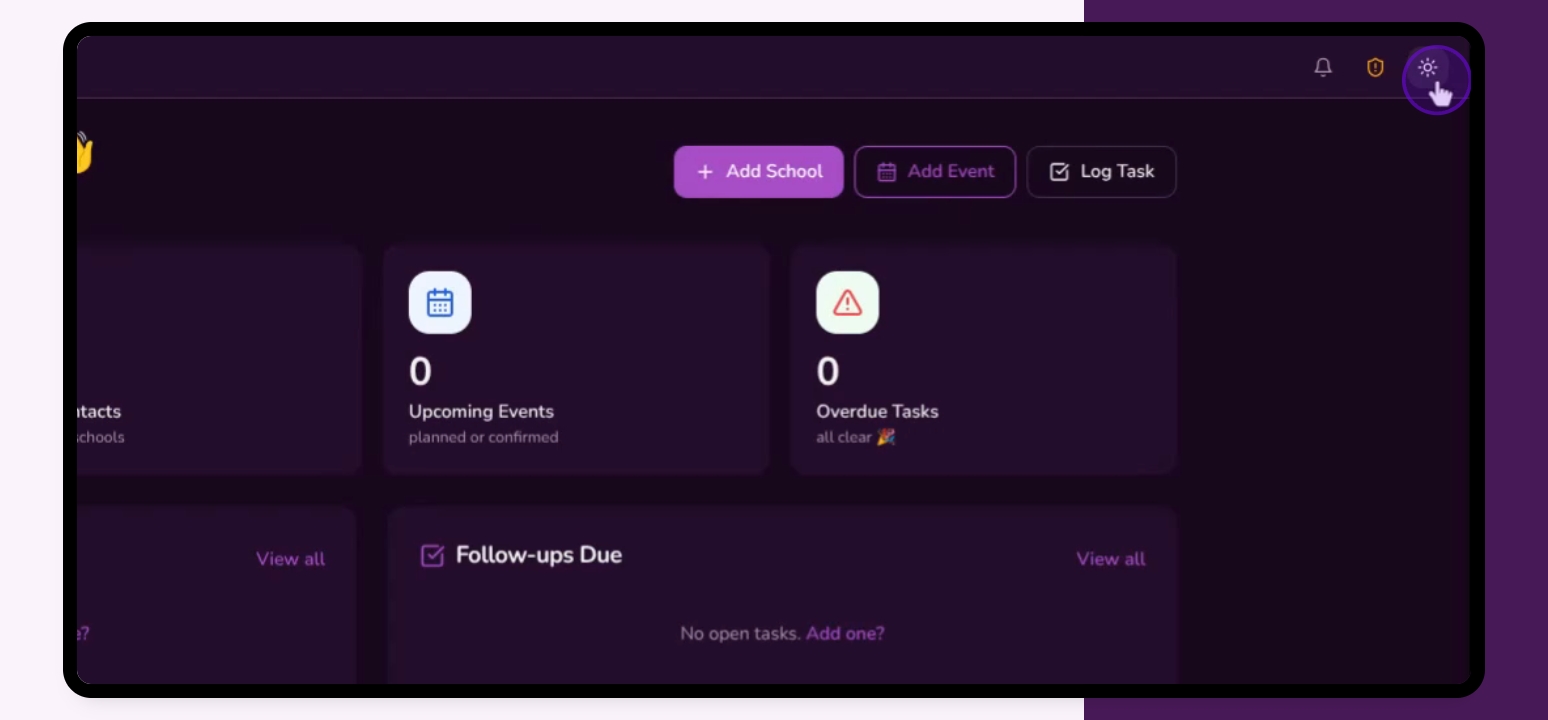
Step 2: Change in Settings
You can also do this from the Settings tab under Profile. Scroll down to Appearance and select from Light to Dark or System, which is Light Mode.