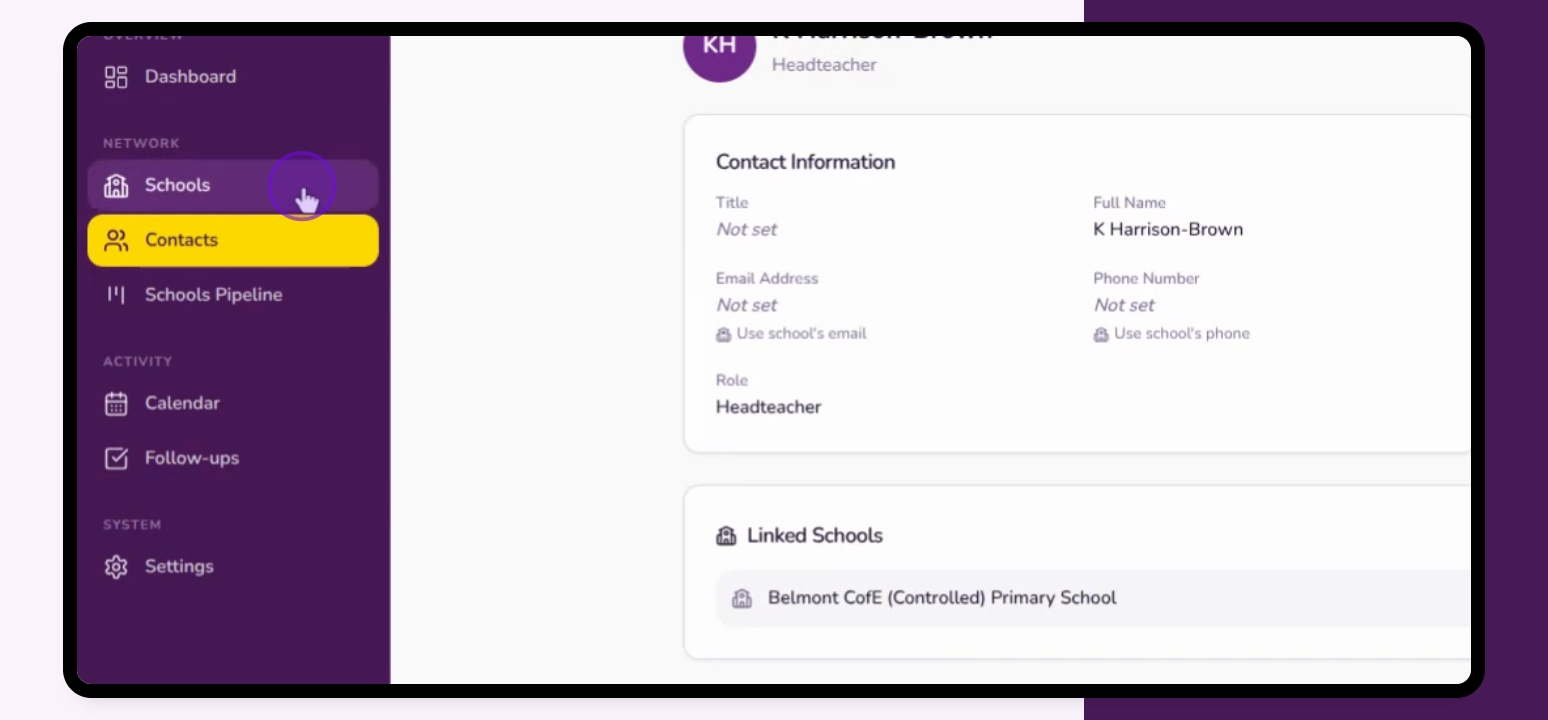

This guide explains how to add a contact in Inkwell CRM without associating it with a school initially. After adding the contact, you can link it to a school later. Let's look at the steps:
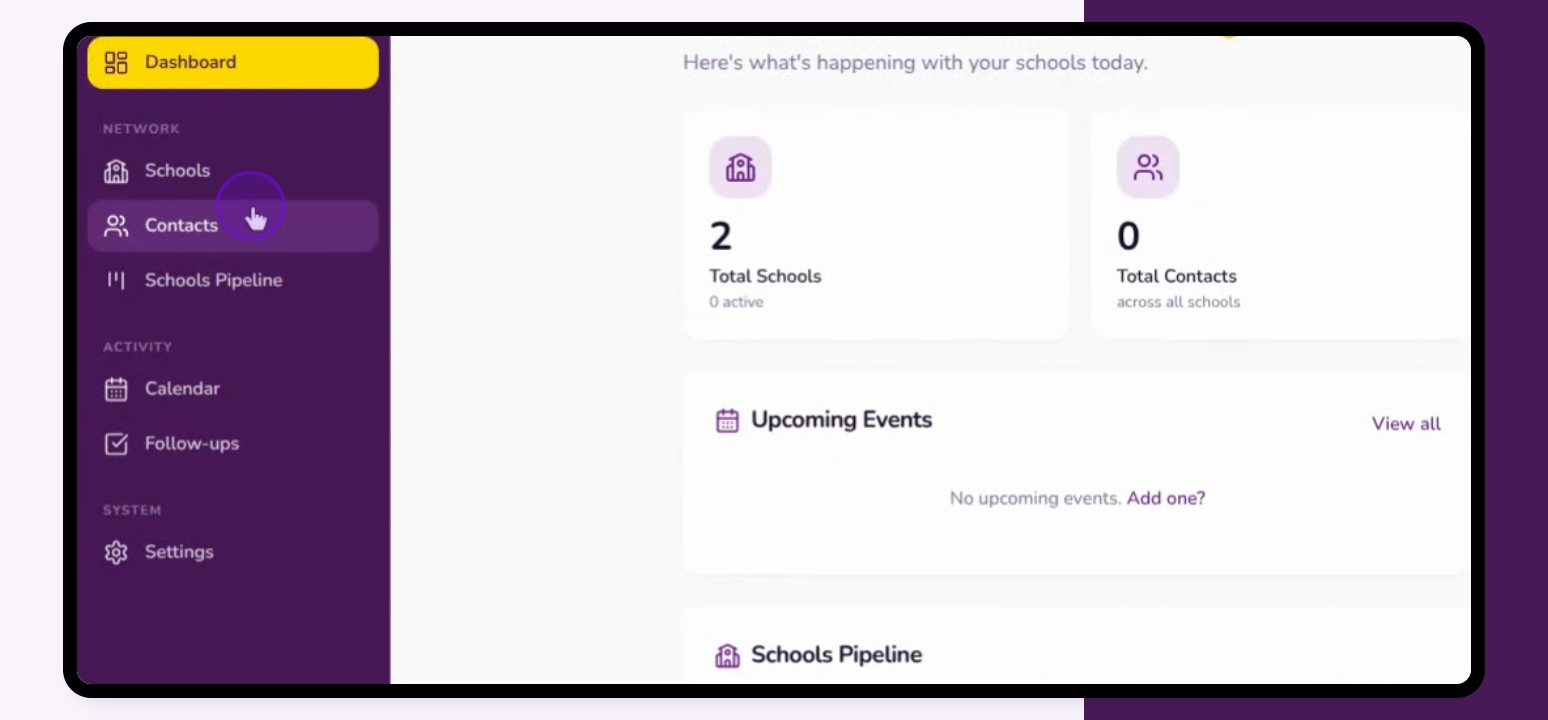
Step 1: Go to Contacts
From your dashboard, navigate to Contacts.
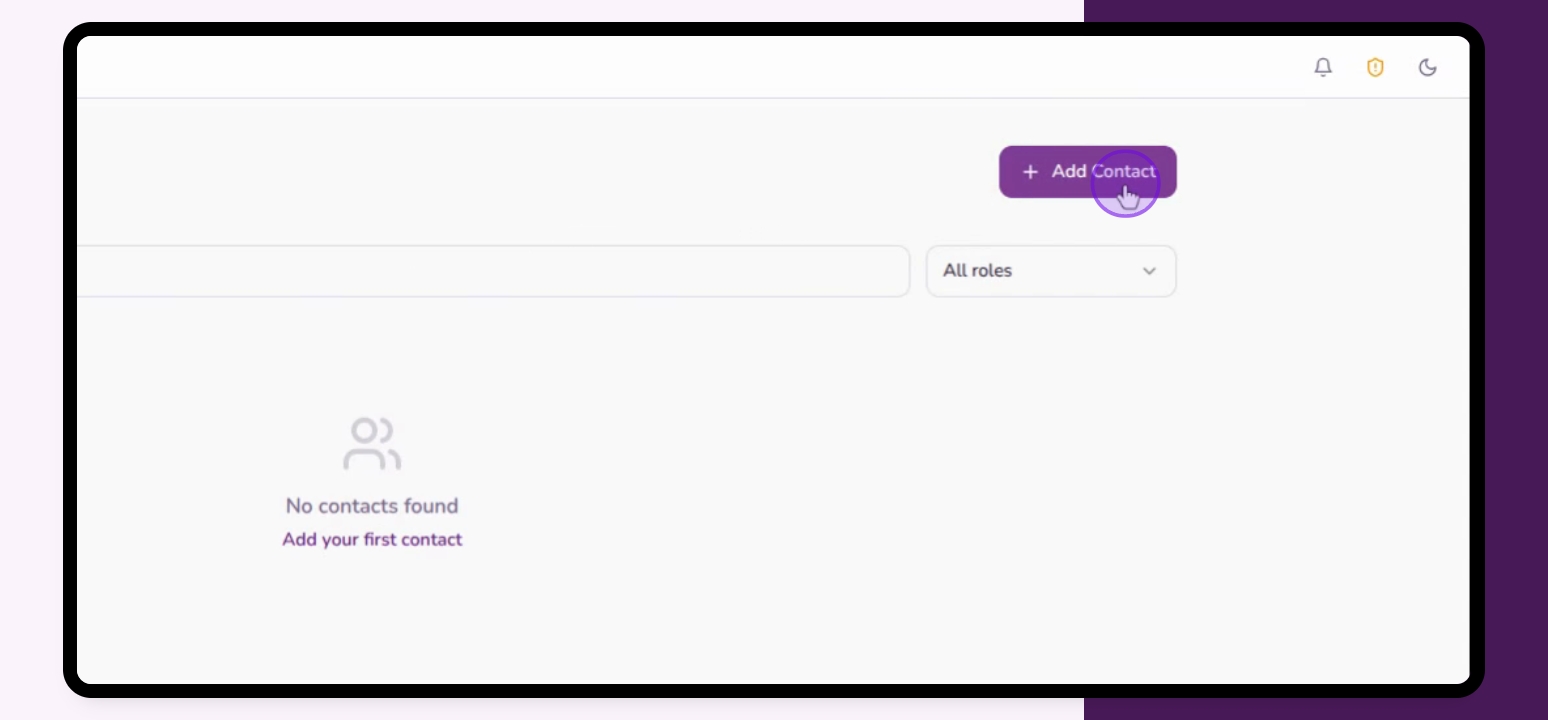
Step 2: Add Contact
Click Add Contact in Contacts.
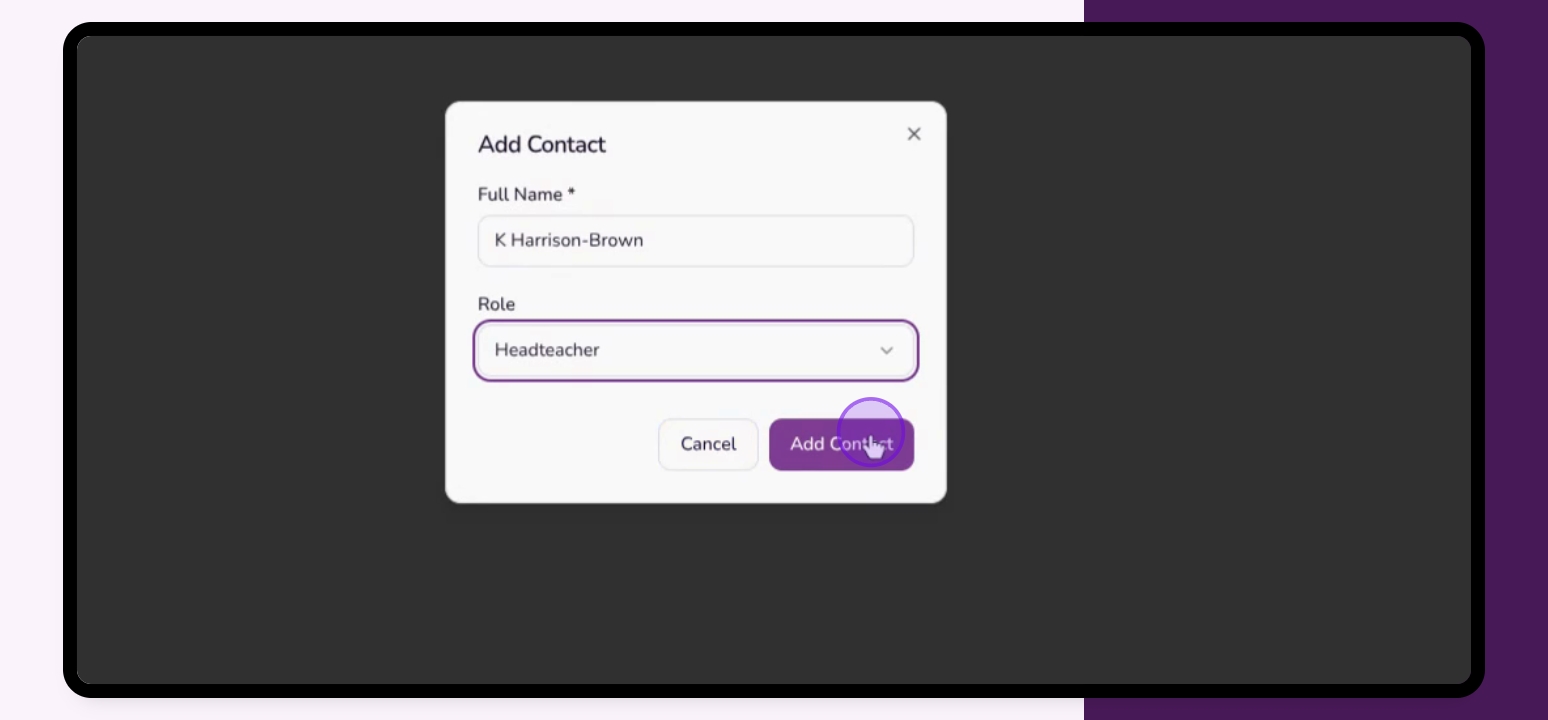
Step 3: Enter Details
Fill in the full name and role of the contact.
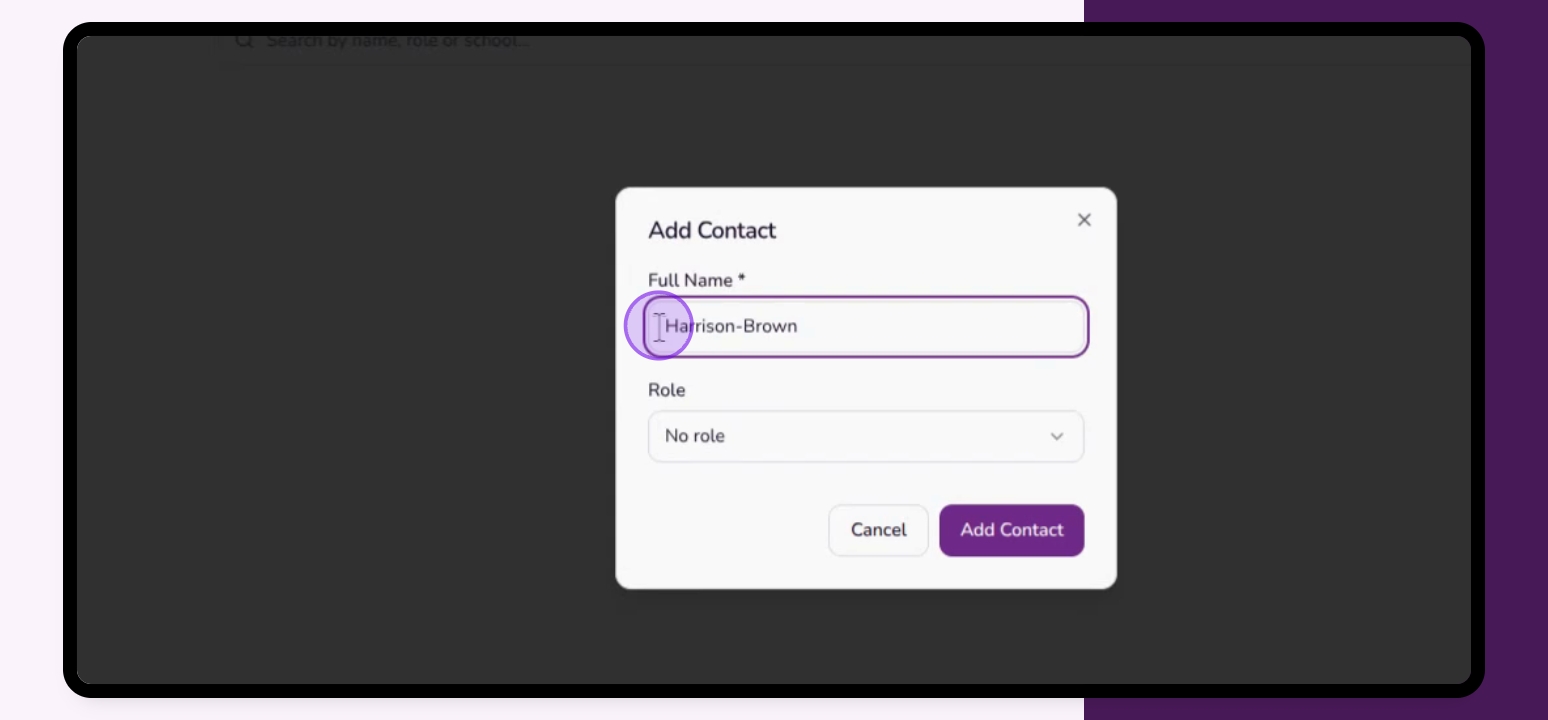
Step 4: Save Contact
Click Add Contact to save the new contact.
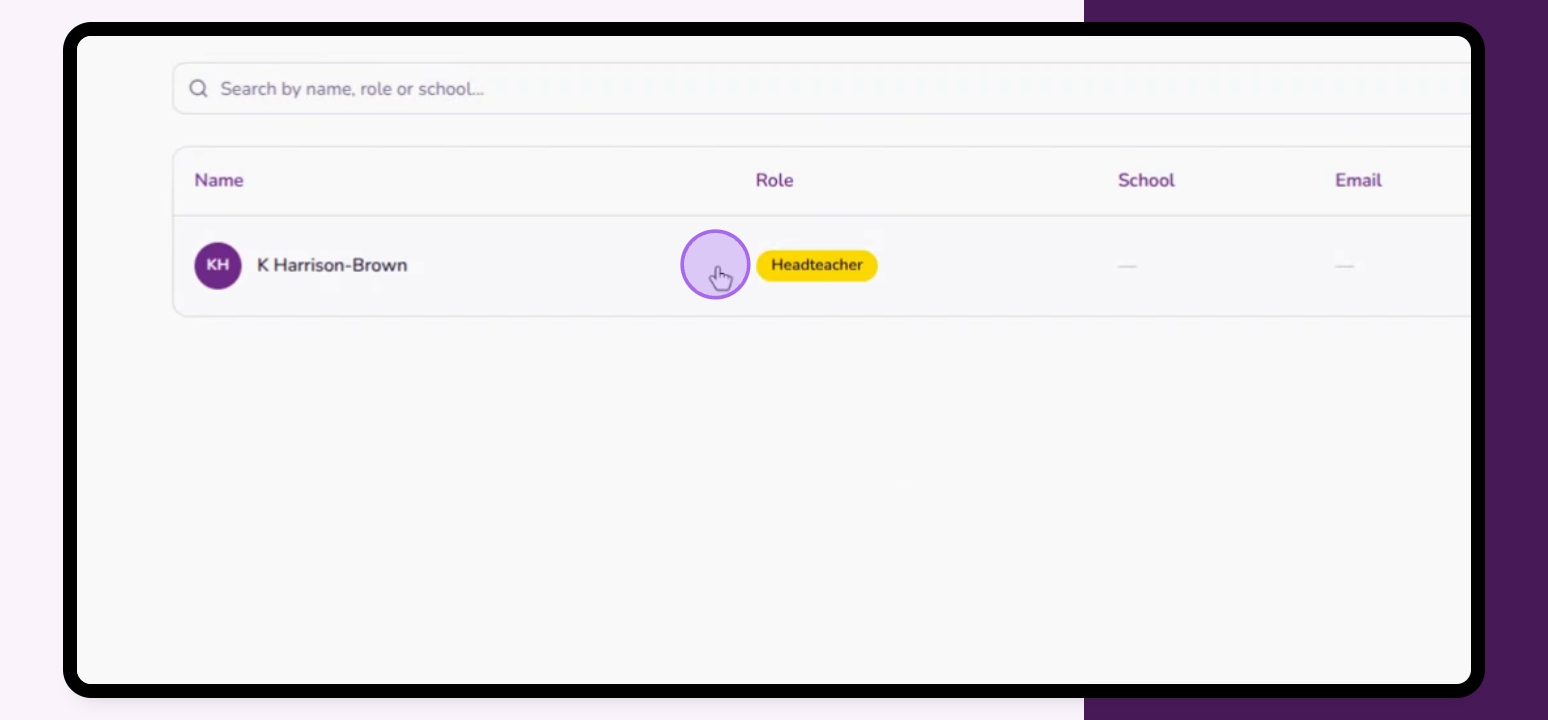
Step 5: Access Contact Record
Click into the record of the contact you just added.
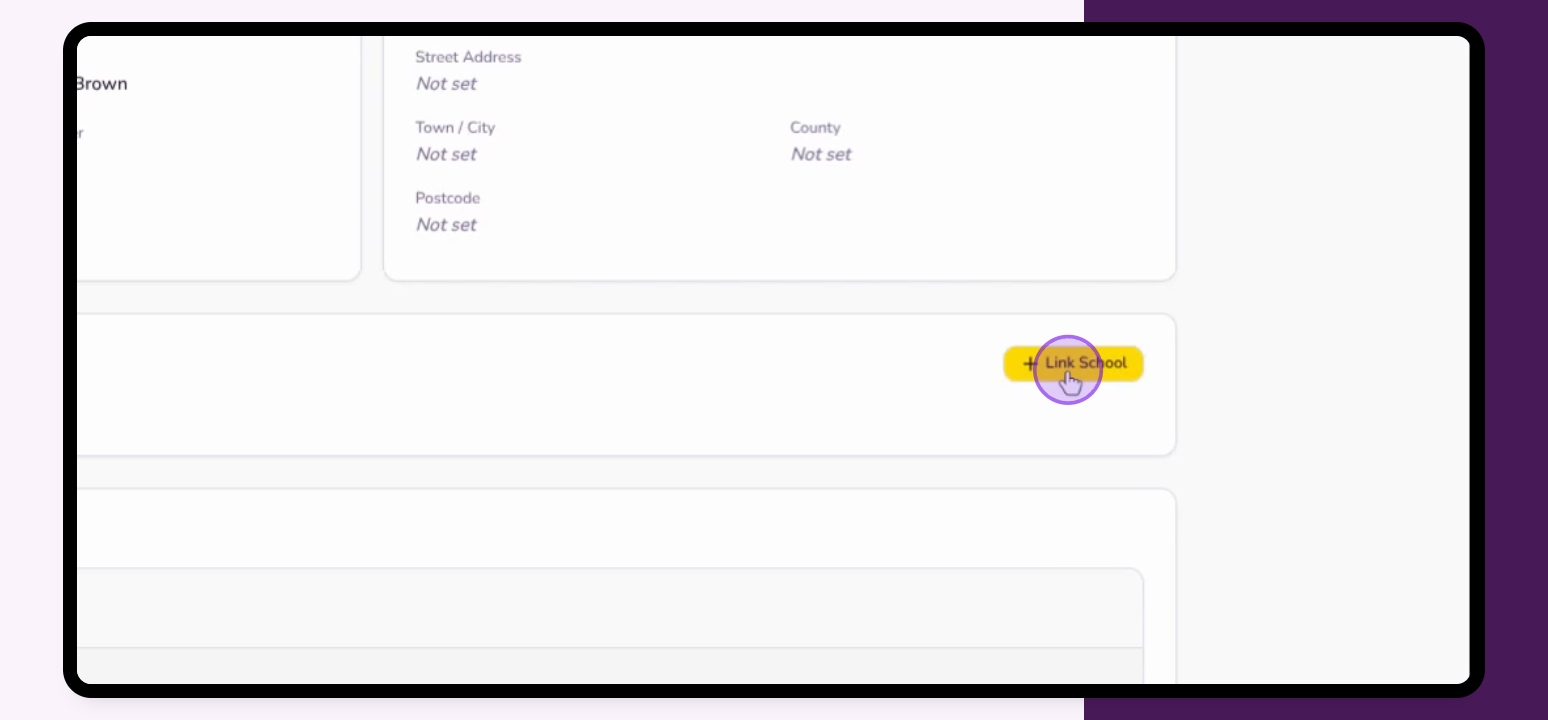
Step 6: Link School
Click the Link School tab to associate the contact with a school.
Step 7: Select School
Choose the school from the list that appears or use the search bar to find it.
Step 8: Confirm Link
Click the school name to link the contact to the school.

You can see the linked contact on the Contacts page or in the school's contact section.